Your webcam keeps disconnecting because of loose cables, USB power limits, driver errors, software conflicts, or unstable settings.
If you keep asking, “why does my webcam keep disconnecting,” you are not alone. This problem can ruin video calls, online classes, interviews, and live streams. After testing webcams on laptops, desktops, USB hubs, and docking stations, I have found that the cause is often simple but easy to miss. This guide explains how to find the real fault and fix it step by step.
Why does my webcam keep disconnecting?
A webcam disconnects when your computer loses contact with the camera. That loss can happen through the USB port, cable, operating system, camera driver, video app, or power settings.
The most common causes include:
- A loose or damaged USB cable
- A weak or faulty USB port
- Too many devices sharing one USB hub
- Outdated or broken webcam drivers
- USB power-saving settings
- Privacy permissions blocking the camera
- Two apps trying to use the webcam at once
- Overheating during long calls
- A faulty webcam
- A problem with the laptop, dock, or operating system
If the webcam disconnects only in one app, the camera may be fine. The issue may be the app, its permissions, or another program using the camera in the background.
If the webcam disappears from every app, the problem is more likely related to the USB connection, driver, power supply, or hardware.
Check the physical connection first
The physical connection is the best place to start. A webcam may look connected while its plug has moved slightly. Even a small break in contact can make the camera vanish for a few seconds.
Try these steps:
- Unplug the webcam.
- Check the cable for cuts, bends, or loose sections.
- Plug it into a different USB port.
- Connect it directly to the computer.
- Avoid using a USB hub or docking station for now.
- Restart the computer.
- Test the webcam again.
On a desktop computer, try a USB port on the back of the case. These ports often connect more directly to the motherboard. Front ports can become loose or may share power with other devices.
If the webcam works when you move the cable, the cable or port may be failing. Do not keep bending the cable to find a working position. That can make the damage worse.
In my own testing, a webcam that seemed faulty worked perfectly after I replaced a cheap USB extension cable. The cable was the weak link, not the camera.
Test the webcam without a USB hub
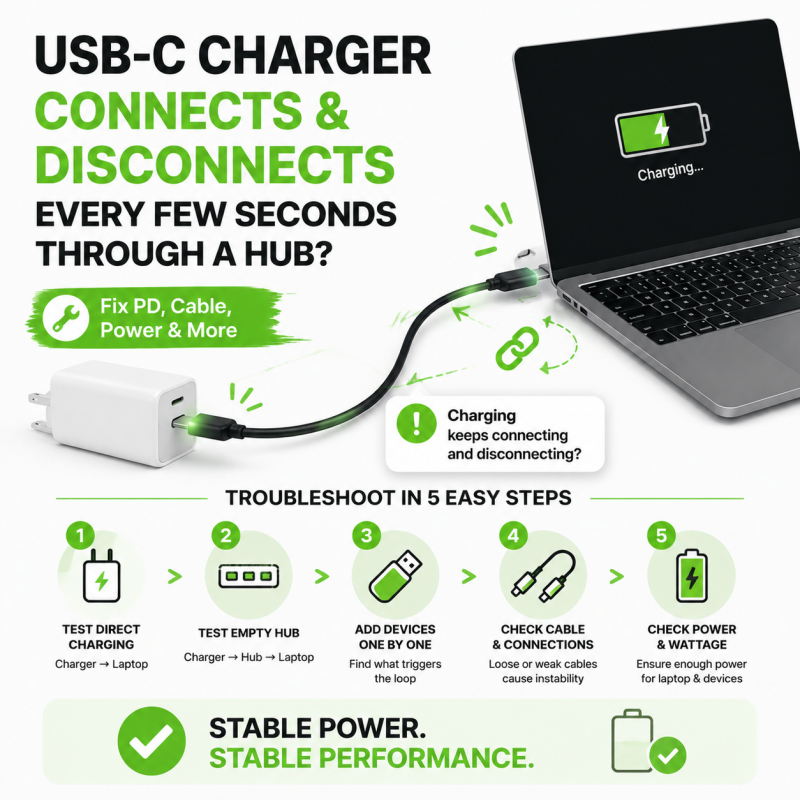
USB hubs are useful, but they can cause webcam connection problems. A hub may not provide enough power, especially when it also connects storage drives, microphones, keyboards, or external displays.
A webcam sends a steady stream of video data. If the hub becomes overloaded, the camera may freeze or disconnect. This is more common with older hubs, unpowered hubs, and low-cost adapters.
Connect the webcam directly to your computer. Then remove other USB devices for a short test.
If the webcam becomes stable, you have found an important clue. You can then try these solutions:
- Use a powered USB hub with its own power adapter.
- Move the webcam to a different USB port.
- Remove devices that you do not need.
- Avoid connecting the webcam through a monitor unless the monitor has a reliable USB hub.
- Use a shorter, better-quality cable.
USB 2.0 and USB 3.x ports can both support many webcams. However, compatibility can vary between computers and camera models. If one port causes trouble, test another port rather than assuming the webcam is broken.
Update or reinstall the webcam driver
A driver helps your operating system communicate with the webcam. If the driver is outdated, damaged, or incompatible with a recent system update, the camera can stop responding.
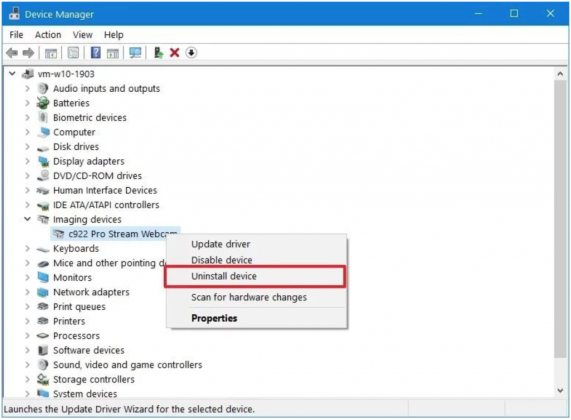
On Windows, open Device Manager and look under Cameras, Imaging devices, or Sound, video and game controllers. Select the webcam and check for driver updates. If updating does not help, uninstall the device and restart the computer. Windows will often reinstall the driver automatically.
You can also download the driver from the webcam maker’s official support page. Avoid random driver websites. They may provide incorrect files or unwanted software.
On macOS, many USB webcams work through built-in system support. Still, updates can change camera permissions or compatibility. Install available macOS updates, restart the Mac, and test the webcam in a simple app such as Photo Booth.
A clean reinstall can fix cases where the webcam appears in the system but disconnects during use. This process removes a damaged driver link and allows the operating system to create a fresh connection.

Change USB power-saving settings
Power management is another common answer to why does my webcam keep disconnecting. Your computer may turn off USB devices to save battery or reduce power use.
This issue often appears on laptops. The webcam may work for several minutes and then disconnect. It may also fail when the laptop switches between battery power and wall power.
On Windows, you can check USB power settings:
- Open Device Manager.
- Expand Universal Serial Bus controllers.
- Open the properties of a USB Root Hub or Generic USB Hub.
- Look for the Power Management tab.
- Clear the option that allows the computer to turn off the device to save power.
- Restart the computer.
You can also review advanced power settings and USB selective suspend. Turning this setting off may improve webcam stability, but it can use slightly more battery.
On a laptop, test the webcam while the charger is connected. If it works only when plugged in, power management or a weak battery may be involved.
Do not change many settings at once. Make one change, test the camera, and record the result. This makes troubleshooting much easier.
Check camera permissions and privacy settings
Privacy settings can block a webcam from working correctly. Sometimes the camera does not fully disconnect. Instead, the operating system stops an app from accessing it.
On Windows, check camera access under Settings, Privacy & security, and Camera. Make sure camera access is enabled. Also allow desktop apps to access the camera if you use programs such as Zoom, Microsoft Teams, Discord, or a web browser.
On macOS, open System Settings, Privacy & Security, and Camera. Allow access for the app you want to use. You may need to close and reopen the app after changing this permission.
Browsers also have camera permissions. If a webcam fails in a website, open the browser’s site settings and confirm that camera access is allowed.
A privacy shutter can create a similar problem. Some webcams have a physical cover, while laptops may have a small slider above the screen. Make sure it is fully open.

Close apps that may be using the camera
Most webcams work best with one video app at a time. If Zoom, Teams, Skype, Discord, a browser tab, and a recording tool all request camera access, they may conflict.
Close every app that could use the webcam. Check the system tray or menu bar for programs running in the background. Then open only one video app and test the camera.
Common programs that may hold the webcam include:
- Video meeting apps
- Web browsers
- Streaming software
- Camera and recording tools
- Social media apps
- Virtual camera software
- Security software with camera monitoring
Some streaming tools create a virtual webcam. This can confuse other apps if the virtual camera is selected instead of the physical webcam.
Select the correct camera inside the app’s video settings. If the app lists several cameras, choose the real webcam rather than a virtual camera or built-in laptop camera.
Check for overheating
A webcam can disconnect when it becomes too hot. This is more likely during long meetings, high-resolution recording, or live streaming.
Heat can also affect the computer’s USB controller. If the laptop or desktop becomes very warm, the system may reduce performance or reset a device.
Watch for these signs:
- The webcam works at first and fails after 20 to 60 minutes.
- The camera body feels unusually warm.
- The computer fan runs loudly.
- Video quality drops before the disconnect.
- The webcam works again after cooling down.
Place the webcam where air can move around it. Do not cover the vents. Keep the computer on a hard surface instead of a bed or soft couch.
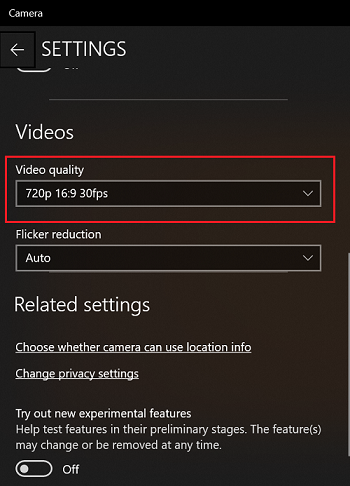
Lowering the video resolution from 4K to 1080p or 720p may also reduce heat and data demand. This is a useful test, even if you later return to a higher resolution.

Test the camera in another app or computer
A simple test can show whether the problem comes from the webcam or the computer.
First, test the camera in a basic camera app. If it works there but disconnects in Zoom, the video meeting app needs attention. If it disconnects everywhere, focus on the camera, cable, USB port, driver, or operating system.
Next, test the webcam on another computer if possible. This is one of the most useful troubleshooting steps.
The results usually point to one of these causes:
- The webcam fails on every computer: the camera or cable may be defective.
- The webcam works on another computer: your main computer has a software, port, or power issue.
- The webcam works only in one app: that app has a setting or permission problem.
- The webcam fails only after long use: heat or power management may be involved.
When I troubleshoot a webcam for someone, I always try this comparison before changing advanced settings. It prevents hours of guessing.
Look for operating system and app updates
Updates can fix webcam bugs, but they can also introduce compatibility problems. If the disconnections began after an update, check the app maker’s support notes and the webcam manufacturer’s software.
Update these items when available:
- Windows or macOS
- Webcam drivers
- Video meeting apps
- Browser software
- Motherboard or chipset drivers
- Docking station firmware
Restart after installing updates. Some driver changes do not take effect until the computer starts again.
If a new update clearly caused the issue, check whether the manufacturer provides a newer driver or known fix. Rolling back a driver may help in some Windows cases, but it should be done carefully. Keep a backup and use official recovery tools.
Fix webcam problems on Windows
Windows users have several built-in tools for finding camera issues. Start with the Camera app to see whether the webcam works outside your main video program.
You can also use Windows Settings to check the camera list and permissions. If the camera is missing from Device Manager, unplug it, restart the computer, and connect it again. Try another port if it still does not appear.
If the camera appears with a warning icon, the driver may have a problem. Uninstalling the device and restarting Windows can rebuild the connection.
For advanced problems, check Event Viewer for USB or device errors. These logs can be difficult to read, so focus on errors that occur at the exact time the webcam disconnects.
Windows laptops may also include manufacturer tools that control privacy, battery life, or USB power. Check these tools if basic settings do not solve the problem.
Fix webcam problems on macOS
Mac users should begin with permissions, app selection, and system updates. Open a simple camera app first. This helps show whether the problem affects the whole system or only one program.
If the webcam is connected through a USB-C adapter, test it without the adapter. Some adapters have limited power or poor compatibility with video devices.
Also test a different USB-C port if your Mac has more than one. A port may work for charging but behave differently with data devices.
Close the video app completely before testing again. If the camera indicator remains on, another app may still be using it. A full restart can release the camera and reset the connection.
If the camera works in Photo Booth but not in a browser, review browser permissions. If it fails in every app, contact the webcam maker or Apple Support after testing the cable and adapter.
When should you replace the webcam?
Replacement may be the best choice when the webcam fails on multiple computers and with different cables or ports. A camera that repeatedly disconnects after physical movement may have a damaged internal connector.
Before buying a new webcam, check its system requirements. Look for compatibility with your operating system, USB type, required bandwidth, and supported video resolution.
You do not always need the most expensive model. A reliable 1080p webcam with a good cable may be more useful than a 4K camera that needs more power and bandwidth.
Consider a replacement when:
- The camera disconnects on every computer.
- The cable cannot be removed and appears damaged.
- The webcam becomes hot during normal use.
- The device is several years old and has no current driver support.
- Another webcam works normally on the same computer.
Keep the receipt or use a trusted seller with a clear return policy. This lets you test the new camera before committing to it.
A practical troubleshooting order
Follow this order when you want a fast and safe answer to why does my webcam keep disconnecting:
- Restart the computer.
- Close every app that may use the camera.
- Check the privacy shutter and permissions.
- Connect the webcam directly to the computer.
- Try another USB port.
- Test another cable if the cable is removable.
- Test the webcam in a basic camera app.
- Test it on another computer.
- Update or reinstall the driver.
- Check USB power settings.
- Reduce video resolution and check for heat.
- Replace the webcam if it fails every test.
This order starts with easy fixes and moves toward deeper checks. It also helps you avoid changing several settings without knowing which one solved the problem.
Keep notes during the process. Write down when the webcam disconnects, which app you use, whether the computer is on battery power, and whether the device feels hot. These details can reveal patterns that are not obvious at first.
Mistakes to avoid when troubleshooting
Many people make the problem harder by changing too much at once. They reinstall several drivers, alter registry settings, and install third-party repair tools before checking the cable.
Avoid these mistakes:
- Do not install drivers from unknown websites.
- Do not force a loose USB plug into a port.
- Do not use a damaged cable during long calls.
- Do not assume the webcam is broken before testing another app.
- Do not ignore heat or strange smells.
- Do not disable all security tools without a clear reason.
- Do not change advanced system settings without recording the original values.
If the webcam smells burnt, becomes extremely hot, or shows visible damage, unplug it. Hardware damage can create a safety risk and may affect the computer’s USB port.
A repair shop or manufacturer’s support team can help when the problem involves a motherboard, docking station, or repeated USB controller errors.
Frequently Asked Questions
Why does my webcam keep disconnecting during Zoom calls?
The cause may be a weak USB connection, app conflict, outdated driver, or USB power setting. Test the webcam in another app and connect it directly to the computer to narrow down the cause.
Can a bad USB port make my webcam disconnect?
Yes. A worn or damaged USB port may lose contact when the cable moves. Try another port, preferably one connected directly to the computer rather than through a hub.
Why does my webcam disconnect after a few minutes?
Heat, battery power settings, and USB power management are common causes. Test the camera while the charger is connected, reduce video quality, and make sure air can move around the webcam.
Does a USB hub cause webcam disconnections?
It can, especially when several devices share an unpowered hub. Connect the webcam directly to the computer or use a powered hub with its own adapter.
How do I know if my webcam is defective?
Test it with another cable, USB port, app, and computer. If it disconnects in every test, the webcam or its built-in cable is likely defective.
Can antivirus software block my webcam?
Some security tools include privacy controls that block camera access. Check the tool’s camera protection settings, but do not turn off security features permanently unless you understand the risk.
Will updating the webcam driver stop disconnects?
It may, if the issue comes from a damaged or outdated driver. Download updates from the webcam maker or your computer maker, then restart the computer after installation.
Conclusion
The answer to why does my webcam keep disconnecting usually involves the connection, USB power, drivers, permissions, app conflicts, or heat. Start with the cable and USB port, then test the camera in another app and on another computer. This method quickly separates a software issue from a failing device.
Use the troubleshooting order in this guide, make one change at a time, and keep notes about what happens. With a few careful tests, you can often restore a stable webcam without buying new equipment. If these steps helped, share your experience in the comments or explore more webcam and video-call guides for practical solutions.